
3.2.4.6. Audio recording
Jump to:
No content available.
Welcome!
We are proud to introduce our Nsoftphone premium client for Windows.
The Softclient is optimised for the nfon telephone system by the manufacturer, Global IP Telecommunications Ltd.
We hope you enjoy using your Nsoftphone premium for Windows.
| Type | Icon/Character | Description |
| NOTE
CAUTION
WARNING |  | NOTE: Information that is useful but not critical to the reader.
CAUTION: Tells the reader to proceed with caution.
WARNING: Stronger than CAUTION; means "don't do this" or that this step could be irreversible, e.g., result in permanent data loss. |
| TIP |
| Useful tips that provide additional information. |
| Procedure | 1. 2. 3. | Procedures are numbered steps to perform an action, where the order of the steps is relevant. |
| Result of procedure/action | ⇒ | Indicates the result of an action//procedure. |
| Lists | • • | Used for listings and items where the order of steps is irrelevant. |

Currently known issues:
Contacts tab: By adding a contact to contact group "Funktionstasten" you're able to select this contact group via dropdown but it's not possible to confirm with "OK"
Call history tab: Outlook button within the Call history tab doesn't work
Call history tab: Having a name listed in the Call history tab with curly braces () (e. g. "John Doe (mobile)") it's not possible to call back by double click
The "known issues" listed above are going to be fixed by the Nsoftphone premium developer as soon as possible. You'll be informed about new releases in time. Please note the release notes.
Nsoftphone premium provides the following key features:
All features listed here are the available standard features by default. Enhanced features as well as an individual graphical user interface or special reportings are available on project basis (e. g. for call centers) based on specific project prices.
Contact your sales partner for further information.
Softphone for Windows Vista, 7, 8 and 10 (32 and 64 bit)
Simple installation
Practical usage via knocking menu
Individual hotkeys and hotkey dial
Busy lamp fields (BFL's) for your contacts
Dial, attended transfer, unattended transfer via drag & drop
SRTP encryption (from version 8.0.0 and above)
Integrate function keys to your contact directory
Call control functions
Call waiting/toggling
(Automatic) conferences
Accepting and ending calls via Plantronics Headsets
Mute and volume control via Plantronics Headsets
Conferencing
Ignore function
Ban function
DND (Do not disturb)
Choose your input/output audio device
Add, change or delete contacts
Export and import of contacts via CSV file
Define individual contact groups
Call history (missed, received, called, not reached)
Outlook-Addin
and much more
| Classic GUI | Office GUI |
 |  |
Compatibility
The Nsoftphone premium client is only compatible with the following operatingsystems (32 and 64bit):
Windows Vista
Windows 7
Windows 8
Windows 8.1
Windows 8.1.1
Windows 10
The Nsoftphone premium client is compatible with the following Outlook clients:
Outlook 2016 (32bit & 64bit)
Outlook 2013 (32bit & 64bit)
Outlook 2010 (32bit & 64bit)
Outlook 2007
Outlook 2003
Outlook XP
Outlook 2002
Outlook 2000
Version
| Classic GUI | Office GUI |
| View the current version number in your client settings by clicking within the Classic GUI. | View the current version number in your client settings by clicking in the Office GUI. |
Subsequently, the settings window appears. Then click at the left select item "License / Version" from the menu selection for "Global settings".
This example has the latest version 7.9.0.
)
No content available.
No content available.
Requirements for running the Nsoftphone premium on your computer:
A computer running operating system Windows Vista, Windows 7, Windows 8 or Windows 10
Account number and password
Extension number and voicemail PIN
Nsoftphone premium is non-terminal-server compatible! Please use Virtual Desktop Infastrucutre (VDI).
You will find more information on unattanded installation of the Nsoftphone for network administration here.
To use the Softphone we also recommend:
A USB headset with an integrated sound card, given that ordinary headsets or built-in speakers often do not provide a good quality of sound.
If possible a tethered, not wireless (WLAN) internet connection, as wireless transmission may compromise call quality.
To use the Softphone with all its call control functions (like accepting and ending calls, mute, volume control) with your headset, we highly recommend to use the NFON certified Sennheiser or Plantronics headsets. For using Plantronics headsets, please download and install the Plantronics Spokes™ software. For using Sennheiser headsets with Nsoftphone premium, the Nsoftphone premium client delivers an SDK kit during installation.
Please install the most recent version of the Plantronics Spokes™ software or activate the checkbox to check for updates automatically.
After successfully installing the Plantronics Spokes™ software please open the Plantronics Update Manager.
)
Please activate the checkbox "Check for Updates Automatically" or please click "Check for Updates Now" as you want to search for updates manually.
)
Please note however, the Plantronics Spokes™ software is a free, generally available software, which is not supported by the NFON AG. Furthermore, the NFON AG does not assume any liability for problems or damage resulting from installing the Plantronics Spokes™ software.
Please consider the following restrictions when using the Nsoftphone premium client with Sennheiser headsets:
You can only use one Sennheiser headset at the same time with the SDK Kit provided by the Nsoftphone premium client.
Usage of 3rd party applications (e.g. Skype) with Sennheiser headsets is not possible with the SDK Kit provided by the Nsoftphone premium client. So simultaneous usage of 3rd party applications (e.g. Skype) and Nsoftphone premium is not possible.
Supported headset features: accepting calls, hanging up calls, redial, volume control (pressing the dial button for 2-3 seconds).
Sennheiser products are currently available to customers in Germany only.
No content available.
Please download the respective installation file for the Nsoftphone premium client from the downloads page under Software for Windows and start the setup.
You will now be greeted by the set-up assistant of your Nsoftphone premium client.
Please click "Next".
)
If you agree with the preconfigured installation directory please click "Next". Otherwise please choose another installation directory by clicking "Browse".
Please click "Next" then.
)
In the next step, please choose whether a desktop link should be available for the "current user" only or for "all users".
We highly recommend to install the Outlook Addin* if you also use Outlook on your computer. As you activated this checkbox please close Outlook through the rest of the installation process.
For using your individual CRM application for your Softphone, please activate the checkbox "Install TAPI driver".
Please click "Next" then.
)
Please click "Install".
)
The installation is now complete. If you want to start the Nsoftphone premium please activate "Start Softphone" and click the Finish button then.
)
Subsequently, please choose between the graphical user interfaces "Classic Skin" and "Office Skin". Selection of the graphical user interface impacts the client view only. Basic functionalities might differ from scope and iteration. You're able to change the graphical user interface later on. Please see chapter X.
)
Please wait till your application has started.
)
After installation the application successfully you'll find the Nsoftphone premium symbol in your tray.
)
Please login then with your personal acccount number as well as with your customer password. Please find more information in C.2.3. Setting the device up on the system.
The installation is now successfully completed.
In case you need logfiles for the installation:
Add /log as a parameter. A “Setup Log <Datum>.txt” will be created in the TEMP (%TMP%) directory.
When using MSI, proceed via “WRAPPED AGRUMENTS”:
phone.msi WRAPPED_ARGUMENTS="-ap ""/verysilent /log"""
*) The Outlook plug-in allows you to dial a telephone number or a contact in Outlook directly via your nPhone or your desk telephone.
Thus you can also phone directly from Outlook. This means answer calls, place
calls, even hold telephone conferences and use many other functions.
More details about the Outlook plug-in on Outlook Addin.
You may now launch the application by clicking the desktop- or start menu icon.
)
| Classic GUI | Office GUI |
|
When opening the Softphone for the first time you will need to configure the audio setting. Please open "Settings..." in the main navigation panel within the Classic GUI. |
When opening the Softphone for the first time you will need to configure the audio setting. Please open "Settings..." within the Office GUI. |


Please open the tab "USB devices" within Global settings to activate or deactivate your audio device.
Please choose your audio device and click "Activate/Deactivate" subsequently. Please confirm with "OK".
)
Please open the "Media settings" tab. Here, you can adjust your audio device to your preferences.
We recommend selecting your headset under "Input device" and "Output device" and the integrated speaker under "Ringtone". As a result, you can conveniently speak via the headset but do not always have to keep it on, to notice an incoming call.
As a standard, the integrated speaker and microphone are selected as the audio devices. Using this menu, you can also activate acoustic echo filtering and set your custom ring tone.
Adjust the volume for "Output device" and "Ringtone" using the controls on the extreme right.
Your headset configuration is now completed.
)
As you are using your headset for other applications as well (e. g. Skype), it might come to interferences between your headset and the Nsoftphone premium client (e. g. during an active conversation). To avoid this, please consider the following settings:
Please open the Windows Control Panel and click "Sound".
)
Please open the "Recording" tab and choose your respective headset. Please open the "Properties" then.
)
The "Microphone Properties" window subsequently pops up. Please open the "Advanced" tab.
)
Please deactivate "Allow applications to take exclusive control of this device". Please click "Apply" and confirm with "OK".
)
Finally, please confirm your settings with "Sound" with "OK".
)
No content available.
In the following, you can see how you can install the Nsoftphone premium client on your telephone system.
- Log in with your customer number and the device creation password.
- Select "Register".
Customer number and password have been sent by email. In this way, we make sure no unauthorised person can install the telephones arbitrarily.
)
- Log in with your customer number and the device creation password.
- Select "Register".
Customer number and password have been sent by email. In this way, we make sure no unauthorised person can install the telephones arbitrarily.
In case you are using the Nsoftphone in the NFON Business tariff, you have the possibility to either choose the Nsoftphone standard or Nsoftphone premium included in the extension.
In case you would like to use the included Nsoftphone standard, please continue with the Nsoftphone standard manual.
In case you would like to use the included Nsoftphone premium, please continue with the Nsoftphone premium manual (subject to charge).
In case you use Nsoftpphone in another tariff, other than NFON Business, the Nsoftphone premium will be registered automatically.
)
When registering the Nsoftphone premium client, you will receive the following message:
"You are registering the Softphone for the first time. This can cause one-time and monthly costs. In case you have questions, please contact your sales partner. Would you like to continue?"
- Click again on "Restart Softphone".
)
If the registration was successful, the Softphone Wizard will inform you about it.
- Click on "Restart Softphone".
)
As previously described in chapter 2.1. Basic installation you're able to choose between the graphical user interfaces "Classic Skin" and "Office Skin".
Selection of the graphical user interface impacts the client view only. Basic functionalities might differ from scope and iteration. You're able to change the graphical user interface later on.
"Classic Skin"
After choosing "Classic Skin" you'll see the classic graphical user interface.
)
For switching the graphical user interface please click on the Nsoftphone premium symbol in your tray with a right click and choose "Office GUI" within "Skins".
)
"Office Skin"
After choosing "Office Skin" you'll see the office graphical user interface.
)
For switching the graphical user interface please click on the Nsoftphone premium symbol in your tray with a right click and choose "Classic GUI" within "Skins".
)
In the following, you can see how you can downgrade the Nsoftphone premium Client to the Nsoftphone standard client in the NFON Business tariff.
| Classic GUI | Office GUI |
|
- When starting the Nsoftphone premium client for the first time, click on the blue arrow symbol in the Classic GUI in the main navigation. |
- When starting the Nsoftphone premium client in the Office GUI for the first time, click on the yellow arrow symbol. |


- You have the possibility to downgrade to Nsoftphone standard by clicking on the corresponding field "Downgrade to Nsoftphone standard".
)
- Log in with your customer number and the device creation password.
- Select then "Downgrade".
)
You will receive the following message:
"You are downgrading to Nsoftphone standard. In case you have questions, please contact your sales partner. Would you like to continue?"
- Click again on "Downgrade".
)
If the registration was successful, the Softphone Wizard will inform you about it.
- Click on "Restart Softphone".
- Continue with the Nsoftphone standard manual.
)
No content available.
| Classic GUI | Office GUI |
|
After logging in with your customer number and password the Softphone will now launch. However, an extension is not yet assigned. Please click on the blue arrow available on your main navigation panel within the Classic GUI to open the following window: |
After logging in with your customer number and password the Softphone will now launch. However, an extension is not yet assigned. Please click on the yellow arrow available within the Office GUI to open the following window: |


The telephone now allows you to generate a new extension in the system or to assign an existing extension.
To add a new extension please click "Create new extension".
)
Please follow these steps to create a new extension:
Enter the extension number, the extension name to be displayed and a voicemail password with at least four digits. This password is required to retrieve voicemail messages from an external telephone for example. Now, select the outside line (your telephone number but without the extension).
After pressing “Create extension”, the data entered is configured in the system.
)
Please click "Restart softphone".
When assigning the existing extension please click "Login with existing extension".
)
Please enter the extension number and the respective voicemail password and click "Logon extension".
)
However, please note that this process deactivates the existing end device (for example a snom desk telephone). I.e., from now on, only the Nsoftphone premium rings.
Please click "Logon extension".
)
Your softphone was successfully registered to the extension.
Please click "Restart softphone".
)
Please restart your client via in the main navigation panel if there's no connection to the SIP server available. The symbol flashes red if an error has been occured .
)
| Classic GUI | Office GUI |
|
To edit or deregister your extension please click on the blue arrow on your main navigation panel within the Classic GUI. |
To edit or deregister your extension please click on the yellow arrow within the Office GUI. |
The following window will appear. Please choose here between
Create new extension
Login with existing extension
Logoff current extension
Please click "Cancel" to cancel the procedure.
)
As you logoff your current extension, the Softphone confirms this with the following window:
Your Nsoftphone premium has been successfully deregistered from the extension. Please click "Close". Afterwards, you'll be able to create another extension or to loggin an existing one. Then please click on the blue arrow on your main navigation panel as described above.
)
If you'd like to create another extension or to loggin an existing one immediately, please choose "Create new extension" or "Login with existing extension".
Please continue with Setting up or registering an extension via Softphone.
No content available.
No content available.
Please note that phone book contacts of the central phonebook are not available in the classic GUI.
You are able to open your contacts by clicking the button "Phonebook / Call history". Subsequently, a window with all available contacts appears.
)
)
| Name | Icon | Description |
| Add group |  | Add a new group. |
| Edit group |  | Edit an existing group. |
| Delete group |  | Delete an existing group. |
| Add contact |  | Add a new contact to an existing group. |
| Edit contact |  | Edit an existing contact. |
| Delete contact |  | Delete an existing contact. |
| Export contacts |  | Export of your contacts as CSV file. |
| Import contacts |  | Import of your contacts as CSV file. Please find an import template here. |
Please open the "Call history" by clicking the button "Phonebook / Call history" to provide yourself an overview about all incoming and outgoing calls.
Select any contact to dial this one directly out of the call history. Edit the selected entry if the entry is a local contact.
)
Please find all symbols available in your call history in the following chart below:
| Icon | Description |
 | Show incoming calls |
 | Show outgoing calls |
 | Show missed calls |
 | Show not reached calls |
 | Call the selected entry |
 | Delete the selected entry |
 | Delete the complete call history |
 | Mark all entries of the call history as "read" |
 | Call the selected entry |
 | Open the selected entry with Microsoft Outlook (if Outlook contact) |
 | Create a new contact from the selected entry |
 | Edit the selected entry if the entry is a local contact |
Please check your voicemail messages by clicking the button "Call history". Subsequently, a window appears which you're able to check your voicemail messages with.
)
The Message Waiting Indicator counts all new voicebox messages on your PBX.
1.) Select a SIP account and
2.) click the green phone button to call your PBX voicebox.
)
Simply ban the phone numbers you don't want to receive any incoming calls from anymore. To do so, please ban an incoming call by clicking the highlighted button to ban numbers. The corresponding phone number will be stored in the list then. If the caller calls you, he will be blocked automatically and you won't here any signal for an incoming call.
As soon as you banned an incoming call, the caller either receives a "busy" or a "dial tone".
The corresponding phone number will be stored in the ban list. You're able to delete a banned phone number anytime out of your ban list.
Delete a selected entry by clicking  . By deleting a phone number the caller will be signaled again with an incoming call.
)
Please click the recording button to record a phone call of one or several lines (e. g. a phone conference). At activating the audio recorder, the red indicator flashes regularly.
)
Clicking the recording button again, the audio recording has finished. Afterwards, the audio file appears in the recording list. In this you'll receive an overview of all recorded calls including date, local party, remote party and call duration.
Listen to the audio file by playing the selected record entry, stop playing the recorded call, play position of the recorded call with total duration and adjust the volume output when playing a recorded call.
To delete one audio recording out of your recording list please consider the following option. Please click  to delete a highlighted recording only.
)
Recorded calls location:
Please open the settings.
)
Define your personal recorded calls location within "Media settings" and "Recordings". Please click  to define a location. Please click
  to delete the current recorded calls location.
Open your current recorded calls locations by clicking  .
.
Please click "Apply" and subsequently "OK" to confirm your settings. Click "Cancel" to cancel your settings.
)
Starting the application and ready-to-operate state
- Please ensure that the netword and internet connections are properly configured and start the application. The application could start in minimized state in the tray (on the bottom of the screen).
- The softphone signalises a radio symbol  after registration in the system.
Outgoing call
- Enter the extension number click on the  key to make an internal call.
- Enter the telephone number and click on the  key to make an external call.
- To end the call click on .
In case you dial the wrong number, click on .
Incoming call
Incoming calls are signalised direclty in the softphone client or in a window at the bottom right of the screen.
- To take the call, click the key directly in the softphone or in the notification window.
- Click on in the softphone or in the notification windiw to end the call.
- If you would like to rejct an incoming call, click on in the softphone or in the notification window.
Call barring
In case you would like to protect yourselft against certain calls,you can deactivate them.
- Click on  . The symbol changes its colour and incoming calls will not be signalised (no ringing). Yet the caller hears the usual call sign.
- In order to deactivate the call barring (DND), please click on the activated symbol  . The symbol becomes grey again and the function is deactivated.
No content available.
No content available.
No content available.
No content available.
No content available.
One of the great features of the telephone is the so-called "Knocking Menu": The telephone user interface (UI) shows up and disappears by knocking at the border of the desktop (the screen).
You'll find the Speed Navigator at the initial start of your softphone client on your screen. You are thus free to select which part of the UI of the telephone you want to see and to use.
)
Please press and hold the blue bar to move the Speed Navigator to any position on your screen. The Speed Navigator is placed on front always. It's not possible to minimize or close the Speed Navigator.
)
Please click the upper left button to hide or unhide the main navigation panel.
Alternatively, please use short key Alt + Strg + F9.
Please click the lower left button to hide or unhide the call line monitor.
Alternatively, please use short key Alt + Strg. + F10.
Please click the lower right button to hide or unhide the work area.
Alternatively, please use short key Alt + Strg. + F11.
Please use the upper right button to hide or unhide all panels at once.
Alternatively, please use short key Alt + Strg. + space key.
You're able to define all short keys by yourself.
"Knocking menu" handling
The telephone user interface (UI) shows up and disappears by knocking at the border of the screen. Each of the four borders of the primary monitor is gesture-sensitive. Either the entire UI appears by knocking at the bottom border two times or the respective part of the UI shows up by knocking two times at the left, the top or the right side of the border of the primary monitor.
Please knock two times against
1.) the top side of the primary monitor to hide/unhide the main navigation panel
2.) the left side of the primary monitor to hide/unhide the call line monitor
3.) the right side of the primary monitor to hide/unhide the work area
4.) the bottom border of the primary monitor to hide/unhide the softphone client completely.
)
Activate/deactive the "knocking menu"
The knocking menu is active by default. As you'd like to deactivate the knocking menu, please click on the SIP server connection symbol on your main navigation panel and choose "Knocking menu off". The knocking menu is deactivated now. Please use the Speed Navigator or your individual short keys to hide/unhide the client.
)
To activate the knocking menu again, please click on the green SIP server symbol on your main navigation panel and choose "Knocking menu on". The knocking menu function is now active again.
)
All important global functions like "Mute", "Speakerphone", call recording, "Do not disturb", audio conference, automatic call acception, chat and the display of the current presence status are grouped here.

Please find all icons and functions in the following table:
| Name | Icon | Description |
| Connected to the SIP Server |
| Symbol flashes "green" upon connect to a SIP Server and red if an error has been occured. Please find further options like settings, status, etc. there. |
| Volume control |  | Volume control for microphone and speaker. |
| Mute (microphone) |  | Mute and unmute function. |
| "Hands free" |  | „Hands free" (Speaker output to “external ringtone”). |
| Audio recorder |  | By clicking this icon the Nsoftphone premium records the current conversation. |
| Auto Conference (AC) |
| Combined with the Auto-Answer feature, these two features can control the way participants are added to a conference |
| Do not Disturb (DND) |
| Activating DND, all incoming calls will be sent to voicemail or callers will receive a “busy” indication. This feature differes from the settings you did in the administration portal. This function is not active by default. |
| Auto Answer (AA) |
| The phone immediately answers a call. This feature is not active by default. |
| Conference |
| If there are calls on more than one line (on hold or active), a simple click at the "conference" button is sufficient to create a conference. All parties that have previously been on hold or active are instantaneosly added to the conference. If you click at an unused line (a line that is idle) while being in a conference, e.g. to reply to an incoming call or to make a new call, all participants of the conference are set "on hold". By clicking at the "conference" button, the conference between all active parties and the parties that had been "on hold" is reestablished. |
| Auto Echo Suppression |  | Suppression of feedback noise when talking handsfree. |
| Audio File Player |  | With the Audio File Player you're able play .wav- and .ogg files. |
| Changing an extension |
| This feature allows you to login or logoff with your existing extension or to create a new one. Please find more details in Changing or deregistering an extension. |
| Restart the phone |  | Ends the phone and restarts. |
| Short Keys |
| This allows own assignments of short keys (keyboard layout) for the most important telephone functions like accepting and ending a conversation, hold/unholde, dial etc. |
| Contact list with BLF (Busy Lamp Field) |
| Opens the contact overview including search criteriums for individual filters and busy lamp fields (BLF's) of your contacts. |
| Call history |  | Will be shown if you have missed calls or if you have voicemail messages. |
| Settings |  | Opens the telephone settings. |
| Help |  | Opens the help of the telephone. |


Each call is displayed as one line in the line monitor. This enables to initiate simple and specific actions for each telephone line/call.
Please enter the phone number which you want to call in the edit control. With a click at the arrow you can select the last dialed number. Then, please either click  to initiate the call or simply presse enter on your keyboard.
)
With a click at the arrow you can select a number from the last five dialed phone numbers. Please select a phone number you'd lke to call and either click or press enter on your keyboard.
)
Please use the redial function to dial the last dialed number. Please click  .
.
)
Each call is displayed as one line in the line monitor. This example deals with an outbound call. Please click  to end the active call.
The caller information below the phone number or the name specified by the PBX displays the duration of the telephone call and the status information to the current call.
)
For an incoming call, please click to accept the call. Alternatively, please click to ignore an incoming call for one time with this function. The caller will receive the status "Busy" or is able to leave a message to your voicebox (depends on your settings). Please click  to ban an incoming call. This feature blocks a specific caller ID. The person calling continues to hear the ringing tone.
)
There's not just a line monitor for each call available but also an additional notification screen on the upper right on your screen. Please click  to accept an incoming call and to ignore and
  incoming call.
)
No content available.
Open the contact area out of the main navigation panel directly. Please click "Phonebook / Call history".
)
1.) Filter for your contacts with an entered text string (company, description, phone private, phone office, mobile phone, facsimile). This shows all contacts which matches with the entered string.
2.) Resets the Search string and shows all entries.
3.) Export of your contacts as CSV file.
4.) Import of your contacts as CSV file. Please find an import template here.
5.) Title of a contact group. Please edit or define a contact group by right mouse click. Please add or edit contacts in the preconfigured contact group "Contacts".
6.) Preconfigured contact group "Function keys" contains all your function keys contacts. You're not able to edit the contacts in there or to add contacts to this group manually. If you'd like to edit your function keys please use Ncontrol.
7.) Busy lamp fields (BLF's) show the classic call status of a call:
8.) Click the right mouse button on a contact to open the contact detail menu. Here you can click at Add, Edit oder Delete contact.
9.) By selecting a contact, detail information of this contact will be shown in this area.
)
| Symbol | Description |
|
| Terminated The party has no phone call. |
 | Incoming call (Early) The party receives an incoming call. |
 | Connected (Confirmed) The party has a phone call. |

Please activate the busy lamp field function for your contacts manually. Please open the settings via clicking in the main navigation panel of the Nsoftphone premium client and activate "Busy Lamp Field (BLF)" within "Presence".
)
Add contacts
Please click in your contact area with right mouse button and choose "Add contact". After adding a contact successfully, you're able to edit this one by clicking with right mouse button and choosing "Edit contact".
The following window appears:
1.) Enter up to four phone numbers for each contact.
2.) Enter contact details like name, address or email address.
3.) Activate the Busy Lamp Field (BLF's) status.
4.) Allocate a contact to one of the meaningful group names.
5.) To enable the receiving of any Presence information, the monitored phone extension must register at your PBX. Enter a valid extension number.
6.) Please define your true extension number or another extension here which is going to be displayed instead of your regular SIP user account.
7.) Allocate the entered extension (No.5) to a SIP account. This is needed to send queries to the right PBX where the entity is a regular member.
)
Import contacts
Please click to import an existing contact list as CSV file.
Then, the CSV manager appears. To upload the respective CSV file, please click within filename. Please choose your CSV file which you want to upload.
Please find a CSV template to import your contacts here.
)
1.) Please define the filename here optionally.
2.) Please define a delemiter to differentiate between the data. This setting depends on your CSV file.
Please hide the header, as you have defined one, with activating "Skip first line".
3.) Please define a group name to contacts have to be imported to.
4.) Please click to define in which column you'd like to integrate which contact data (first name, last name, company, etc.).
5.) Please click "Unselect all data" if none of your contacts should be integrated.
6.) Please click "Select all data" if all of your contacts should be integrated.
7.) Please click "Cancel" to cancel the contacts import.
Please click "OK" then to start the import procedure.
)
Please open the "Call history" via your main navigation panel to provide yourself an overview about all incoming and outgoing calls.
Select any contact to dial this one directly out of the call history. Edit the selected entry if the entry is a local contact.
)
Please find all symbols available in your call history in the following chart below:
| Icon | Description |
 | Show incoming calls |
 | Show outgoing calls |
 | Show missed calls |
 | Show not reached calls |
 | Call the selected entry |
 | Delete the selected entry |
 | Delete the complete call history |
 | Mark all entries of the call history as "read" |
 | Open the selected entry with Microsoft Outlook (if Outlook contact) |
 | Create a new contact from the selected entry |
 | Edit the selected entry if the entry is a local contact |
Please click "Phone book" to find a directory of all contacts available in the main phone book.
)
Please enter any name to search for in the main phone book and press  .
.
)
Subsequently, all available search results appear in the main phone book. Please click any phone number to dial directly out of your main phone book.
Clicking again, returns you to the default contact overview.
)
The Message Waiting Indicator counts all new voicebox messages on your PBX.
1.) Select a SIP account and
2.) click the green phone button  to call your PBX voicebox.
)
Simply ban the phone numbers you don't want to receive any incoming calls from anymore. To do so, please ban an incoming call by clicking . The corresponding phone number will be stored in the list then. If the caller calls you, he will be blocked automatically and you won't here any signal for an incoming call
)
As soon as you banned an incoming call, the caller either receives a "busy" or a "dial tone".
The corresponding phone number will be stored in the ban list. You're able to delete a banned phone number anytime out of your ban list.
Delete a selected entry by clicking . By deleting a phone number the caller will be signaled again with an incoming call.
Delete the complete "banned" list with all entries by clicking .
)
Please click  in the main navigation panel to record a phone call of one or several lines (e. g. a phone conference). At activating the audio recorder, the red indicator flashes regularly.
)
Clicking the recording button again, the audio recording has finished. Afterwards, the audio file appears in the recording list. In this you'll receive an overview of all recorded calls including date, local party, remote party and call duration.
Listen to the audio file by playing the selected record entry, stop playing the recorded call, play position of the recorded call with total duration and adjust the volume output when playing a recorded call.
)
To delete one or several audio recordings out of your recording list please consider the following two options. Please click to delete a highlighted recording only. Please click to delete the complete list.
Recorded calls location:
Please open the settings by clicking in the main navigation panel.
)
Define your personal recorded calls location within "Media settings" and "Recordings". Please click to define a location. Please click to delete the current recorded calls location.
Open your current recorded calls locations by clicking .
Please click "Apply" and subsequently "OK" to confirm your settings. Click "Cancel" to cancel your settings.
Please open the "Short keys" via the main navigation panel to describe the function of a shortkey.
Subsequently, the "Settings" tab appears.
The left side describes all short key functions available. Change the desired short key input field which you want to change on the right side. Press the desired key combination with which you want to perform the operation.
Please click "Apply" and confirm your settings made by clicking "OK".
)
Launching the application and functionality:
1.) Connect the network and internet and start the application. The application may start in minimised mode on the task bar (typically at the bottom edge of the screen).
2.) After logging into the system the Softphone will show a green transmission icon  on the top left in your main navigation panel.
Outgoing call:
1.) Please enter any internal number which you want to call in the edit control (or choose one per drop down menu ). Please click the dial button then .
)
2.) Please enter any phone number which you want to call in the edit control with prefix 0 or 9 (or choose one per drop down menu ). Please click the dial button then .
)
3.) Or simply Drag & Drop a phone number from the contact list onto the edit box. Click on the phone number with left mouse button, grap it and drag it to the call line monitor. Then simply drop the phone number by releasing the left mouse button.
)
4.) End an active call by clicking .
)
Clipboard dial:
To dial from clipboard, please copy any phone number to your clipboard. Then, please click on the green transmission icon available in the main navigation panel and choose "Dial from Clipboard..." and afterwards the phone number which you copied into your clipboard previously.
)
Incoming call:
Each call is displayed as one line in the line monitor.
)
But there's not just a line monitor for each call available but also an additional notification screen on the upper right on your screen.
)
1.) To accept the call either click the key on the line monitor or in the notification screen.
2.) To end the call press the key .
To reject an incoming call either click the key or click the key in the notification screen.
To avoid incoming calls please press the  key in the main navigation panel. Incoming calls will be sent to voicemail or callers will receive a “busy” indication depending on your settings.
Auto answer:
The phone immediately answers a call after activating this key  in the main navigation panel.
Call waiting and toggling (switching)
If you are already in a call, the open line will light up at the top left in your call line monitor.
)
To establish a second call enter the phone number which you want to call in the edit control. Then, please click . Alternatively, simply Drag & Drop a phone number from the contact list onto the edit box.
)
If you are also receiving a call from a second person a line monitor will flash and the call waiting tone will sound. Click to accept the call.
)
You will now be able to switch between the calls by clicking the line windows. The current call will be indicated with a blue speakerphone icon and the waiting call(s) with a "hold" icon.
To end a call click .
)
Unattended call transfer
Each call is displayed as one line in the line monitor. Please consider the following two options to initiate an unattended call transfer:
Simply enter the phone number of your transfer target. Then drop the telephone line of the caller onto the edit box.
)
If the targetted person is already in your list of contacts, you can alternatively drag the origin onto a phone number of the desired contact and drop it there. It is finally also possible to drag and drop a phone number of one of your contacts on the line that is to be forwarded.
The call will promptly be transferred and your line is “open” again.
)
Attended transfer
You have answered a call and the display now shows an open call line. You wish to transfer the caller but would like to first announce the caller.
Simply enter the phone number of your transfer target and click . Alternatively, simply drag the telephone line of the originating party onto the the tlelephone line of the second party.
)
A new connection is being established and the current caller will be placed on “Hold”.
)
After announcing the caller during your call with the target person please drag & drop the telephone lines onto each other.
The connection between these parties will be established promptly and your line is “open” again.
)
Conference call
If there are calls on more than one line (on hold or active), a simple click at the "conference" button  in the main navigation panel is sufficient to create a conference.
If you click at an unused line (a line that is idle) while being in a conference, e.g. to reply to an incoming call or to make a new call, all participants of the conference are set "on hold". By clicking at the "conference" button again , the conference between all active parties and the parties that had been "on hold" is reestablished.
)
Auto conference
With this feature you can control whether the participants should be added to a conference automatically or not. Please activate the Auto conference function  in the main navigation panel to have a conference with all incoming calls automatically.
Ban
This feature blocks a specific caller ID. Incoming calls from banned parties are automatically handled as if "Do Not Disturb" was activated.
Simply ban the phone numbers you don't want to receive any incoming calls from anymore. To do so, please ban an incoming call by clicking in a call line. The status will be recorded in the “Banned numbers” list and can be released again by deleting it from the list. Until the blocked number is removed from the list
the caller will be unable to reach you. The caller will hear the regular ringing tone.
Ignore
With an incoming call click in a call line window.
An incoming call can be ignored for one time with this function. The caller receives a "dial tone".
Record call
After answering a call you're able to record an active conversation.
Press the key in the main navigation panel during the call. Your call will now be recorded. You will find the recorded call under Recordings.
)
Contacts
By clicking the key in your main navigation panel the Nsoftphone client opens the contact overview within the "Contacts" tab.
This allows you to quickly access your contacts and place calls. The Nsoftphone premium also allows you to add new contacts, delete existing contacts and edit them easily by right mouse click.
Furthermore, you're able to search your contacts via the contacts filter to show contacts which matches with the entered text string. Additionally, you're able to export your contacts as CSV file or to import contacts via CSV file .
Moreover, the Nsoftphone premium client shows the classic call status of a call via busy lamp fields (BFL's). Please find a detailed description within Contacts.
)
Call History
Please find a detailed description within chapter Call history.
Microphone/speaker volume
Please define the microphone volume  as well as the speaker volume
  via the volume control function in the main navigation panel.
Mute/unmute
To mute your telephone click in the main navigatoin panel. Your microphone is now muted. To unmute yourself please click the Mute/unmute function in the main navigation panel again. Your microphone is now unmuted.
You're able to mute/unmute yourself with several Plantronics headsets as well.
Further information
Please press the key to find further information and help.
Screen selection
Please define one screen on which the Nsoftphone premium should appear with the screen selection function as you have several monitors to use.
Select the monitor where the phone shall be displayed by clicking the green transmission icon available on your main navigation panel. This menu is only available if you use more than one monitor.
Language:
All currently available languages are displayed with this option available by clicking the green transmission icon on your main navigation panel. If you choose a language that differs from the current setting, the phone will immediately redraw the user interface with the new language.
)
Skins:
Please define an individual "Skin" of your Nsoftphone premium client by clicking the green transmission icon available on your main navigation panel.
)
Launch on boot:
Please activate "Launch on boot" by clicking the green transmission icon available on your main navigation panel to start the softphone when the operating system boots.
)
The following dialing rule is the default for your Softphone settings:
Maximum length of internal telephone number: 5
Outside line: 0
That means for all telephone numbers with more than 5 digits a prefix of “0” willautomatically be added for the outside line.
If for example you have 3-digit internal telephone numbers (extensions) change the length of internal telephone numbers to 3.
)
To access the Softphone settings menu click on your Softphone.
)
Action URLs are hyperlinks that are called when the telephone changes its status.
They are used to display contacts or to trigger other functions in third-party software.
The phone can send Action-URL's in following phone states below
Incoming call
Outgoing call
Connected call
Hangup call
Hold call
An action URL is always sent when an entry is stored in the settings
Refer to the manual of the third party software that you use in order to provide the correct semantics of the Action URLs (e.g. sugar CRM, tecart or salesforce).
With the option "Show in browser / Use API", you can decide wether a URL will be called silent or will be shown in your web browser.
As soon as there's an update available for Nsoftphone premium, you'll be notified.
1. Please choose "Download" to initiate the update procedure.
2. Please choose "Close Window" to cancel the update procedure.
Activate the function "Don't ask me again", in case Nsoftphone premium shall remember your choice for the next shut down procedure.
)
Search for updates manually
Independently whether the above mentioned update notification did not appear you're able to update the Nsoftphone premium client manually as well:
Please choose "System and then "Check for updates" by clicking on the green transmission icon
)
Please activate voice encrpytion (SRTP) for your system to use SRTP with your Nsoftphone premium clients. Please login to the administration portal with your account number and system password and visit Administration/Profile. Afterwards, please activate "Voice Traffic Encryption (SRTP)" within the Options section.
)
Please note the following hint at activating "Voice Traffic Encryption (SRTP)" for your system:
"Activating this function is subject to charges. Activation will restart all phones. Continue?".
Please note, that Voice Traffic Encryption (SRTP) is available for Nsoftphone premium version 8.0.0 (and higher) only.
No content available.
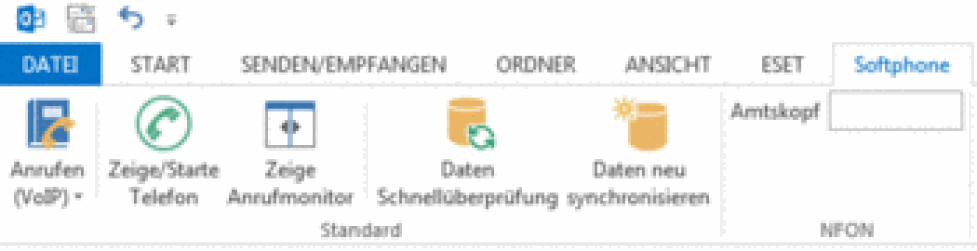
The Outlook AddIn allows you to dial a telephone number or a contact through your Softphone directly from Outlook.
Thus you can also phone directly from Outlook. This means answer calls, place calls, even hold telephone conferences and use many other functions.
Thus Outlook is fully integrated with your Nsoftphone premium client.
)
The number of lines available for phoning via Outlook is infinite.
)
| Symbol | Description |
 | Edit control |
 | Dial |
 | Call forward |
 | Take call |
 | Ignore incoming call/Hangup |
 | Active conversation; by clicking this symbol, caller is placed on hold |
 | Caller is placed on hold; by clicking this symbol the caller is unhold |
| Number of contact folders | |
 | Number of contacts |
Usage of the AddIn is identical with the use of the standard Nsoftphone premium user interface. You can use the functionality as you’re already used to with Nsoftphone premium.
| Symbol | Description |
 | This green transmission icon signalises an active SIP account. |
 | Mute/unmute |
 | Ignore incoming call |
 | Block incoming call |
 | Do not disturb (DnD) |
 | Redial |
 | Conference |
 | Call history |
 | Show found contacts |
)
| Symbol | Description |
 | If a contact is marked you will see the telephone numbers for the contact in a drop-down. Simply click the respective number and the call will be connected. |
 | The Nsoftphone premium software telephone is brought to front. |
 | Toggles between hiding/showing the Call Monitor. |
 | Quick resync of all Outlook contacts (Example: Faulty or inconsistent information of Outlook data displayed at incoming calls). |
 | New synchronization of all contacts which were previously defined in Outlook. |
|
| Here select the main number to use when phoning. If you have several numbers you may specify the number you would like to indicate for outgoing calls here. This requires the respective line number for the telephone number to be entered (1-digit, 2-digit or 3digit). If you do not know the line number please contact your administrator. |

Outgoing call:
With outgoing calls you generally have two options for dialing a number. Either dial a contact directly from your Outlook address book or manually enter the telephone number in the plug-in.
Please click a contact to phone. The icon  will now appear in the top left of the title bar. There you may select the number for the selected contact and phone it directly.
Alternatively, please click on a contact by right mouse button and choose "Call (VoIP)" for outgoing calls.
To manually enter a telephone number simply click the edit field  where you may then enter any telephone number. To dial the number click either
  or simply confirm with “Enter”.
)
Incoming call:
When a call comes in the respective line will flash in the plug-in. It will be indicated as follows:

Simply click to accept the call.
If the caller is a contact stored in your Outlook address book the name and telephone number will be displayed. If the caller is not stored, only the telephone number will be displayed.
Clicking  will open the respective Outlook contact for the caller. If there is no existing address book entry a blank contact form will be shown to add the new contact by clicking the phone number in the call monitor

Unannounced call transfer:
After successfully accepting a call you have the option to directly transfer the call:
1.) To do so during the call please enter the phone number you would like to transfer to in the edit control  .
.
2.) Please click  then or drag & drop the telephone lines onto each other.
The call will promptly be transferred and your line is “open” again.
)
Announced call transfer:
You have accepted a call. You would now like to transfer the call but would first like to announce the caller:
1.) To do so during the call please enter the phone number you would like to transfer to in the edit control  and please click then. The caller will be placed on “Hold” which you'll be notified about with
  .
.
2.) Now you're able to announce the caller.
3.) After successfully announcing the caller, please drag & drop the telephone lines onto each other.
The call will promptly be transferred and your line is “open” again.
)
No content available.
What is TAPI?
The Telephony Application Programming Interface (TAPI) is a Microsoft Windows API, which provides computer telephony integration and enables PC's running Microsoft Windows to use telephone services. This Interface was developed by Microsoft and Intel. With Microsoft Windows 95, TAPI was integrated into the operating system. Applications like Callcenter Software, Softphones, Videoconferencing Systems or ISDN (well known in Europe) are using TAPI.
How to install TAPI ?
The TSP driver (TSP = TAPI Service Provider) is co-installed on your system during the installation of the softclient. Subsequently can TAPI compliant software (e.g. Microsoft Outlook) configure and use the TSP driver as telephone line. The actual configuration process differs between manufacturers. Please refer to the manual of your software (e.g. a Customer Relationship Management software) for details about TAPI configuration.
)
Current TAPI version: TAPI 2.0
The name of our TSP driver is: GlobalIPTel TSP (32 / 64Bit)
The name of our TAPI telephon line is: Global IP Tel MultiLine
Calls that are routed through the softphone are signalled by our TSP (Telephony Service Provider) automatically to all other TAPI compliant applications (Outlook Plugin or other third party CRM software). Third party applications can use information that is offered by the phone to open contact windows or notice forms.
Choose the order "execute" in your programm manager of Windows. Alternatively, please press the windows key and the r-key simultaneously.
)
The execute window opens. Please dial in "dialer" and confirm with "OK".
)
Now the "Phone Dialer" window opens. This represents your Nsoftphone premium TAPI client.
Please choose "Tools" and then "Connect Using....".
)
The "Connect Using" window opens. Please choose "Global IP Tel MultiLine" as line and confirm your settings with "OK".
)
Please dial any phone number and confirm by clicking "Dial".
)
An outgoing call will be triggered via your Softphone.
Please choose "Hang up" within your TAPI client or directly in the Nsoftphone premium client to end the call.
)
Where can you get help?
You can use various sources for help concerning your issues. Please use them in the order suggested here:
| Your partner | Please contact your contractual partner by email or phone to get support. |
| admin.phoneup.de
| The home page of the admin portal contains links to manuals, brief instructions, software downloads and templates. Please read these manuals thoroughly. They help you get the most out of your telephone system. |
| Support hotline for existing customers | If neither the manuals nor the FAQs or other contents of the support website provide a solution, you can open a support ticket by phone. If neither the manuals nor the FAQs or other contents of the support website provide a solution, you can open a support ticket by phone.
|